
“The machine just stopped turning on” is a description that makes a technician ask a few more questions: does the charging light come on, does the fan spin for a second then stop, is the screen black or is there no signal at all. Each small detail points to a different cause. This guide goes from the easiest cause to check to the hardest.
Step 1: Rule out external power
- Try another outlet and unplug USB devices, external drives and the HDMI cable from the machine.
- Look at the charger: does the LED on the adapter (if any) light up, is the cable kinked, is the plug burnt black.
- If you have a compatible charger from another machine with the same wattage, try it to rule out a bad charger.
Step 2: Drain residual power
Unplug the charger, remove the battery if it is removable, hold the power button for about 30 seconds, then plug the charger back in and press power. This handles a “hung” power management circuit, which is quite common after the battery suddenly runs flat or after an interrupted BIOS update.
Step 3: Read the signals from the machine
| Symptom | Commonly means | Level |
|---|---|---|
| No light, no fan, charger normal | Failed power circuit, MOSFET, power IC | Needs a technician |
| Fan spins, light on, black screen | Loose or faulty RAM, BIOS fault, graphics chip or display cable fault | You can try the RAM |
| Turns on then off after 2-3 seconds | Short circuit, thermal sensor or charging port fault | Needs a technician |
| Shows the logo then freezes or restarts repeatedly | Drive fault, operating system fault | Data is usually recoverable |
| Charging light blinks in a pattern | Manufacturer error code | Look up the manual for your model |
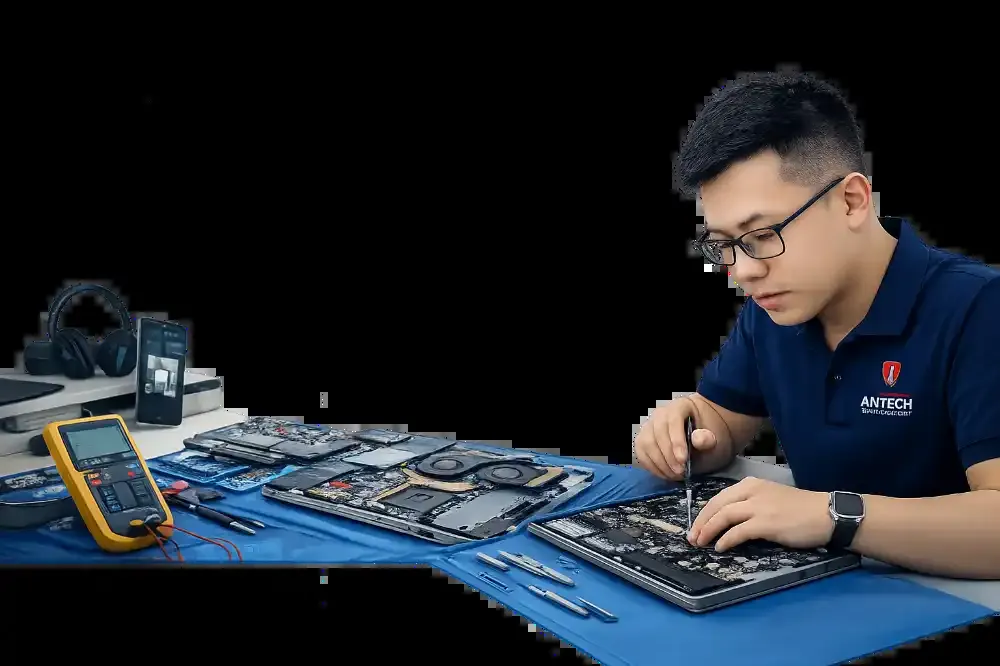
7 common causes
- A faulty or wrong-wattage charger; many machines refuse unfamiliar chargers.
- A charging port with loose pins; you can see the plug wobble by eye.
- A worn, swollen battery, with power cut by the protection circuit.
- RAM with loose or oxidized contacts after an impact.
- A BIOS fault after an update or a power cut midway.
- A faulty screen or display cable: the machine runs but shows nothing.
- Mainboard: failed power IC, MOSFET or resistor after liquid damage or an electrical shock.
When should you take it to a technician?
If the first two steps do not bring the machine back, or it shows signs of liquid damage, impact or a burnt smell, stop trying to fix it yourself. For mainboard cases, we state the specific cause and the cost before repairing. If the cost exceeds the value of the machine, we will say so plainly and help recover your data first.
Will repairing a no-power fault lose my data?
How long does a no-power repair take?
Bring it to ANTECH and a technician will measure and state the cause before any repair.
Related articles

8 Security Steps a Small Office Should Take Now (No IT Department Needed)
8 security steps a small office can take now: updates, separate accounts, two-factor authentication, backups, permissions, ransomware and phishing.
5 dấu hiệu laptop cần vệ sinh và tra keo tản nhiệt
Quạt kêu to, máy nóng ran, tự tắt khi chơi game: 5 dấu hiệu cho biết đã đến lúc vệ sinh laptop và thay keo tản nhiệt, kèm bảng nhiệt độ để tự đối chi…

Failing Hard Drive: What to Do and What Not to Do to Save Your Data
Hard drive showing errors, not detected or clicking? A guide to what to do, what you must never do, and when to hand the drive to a technician to kee…